AI Invoice Generator
Create Invoices with AI
Tell your AI assistant who you’re billing, what you’re charging, and when it’s due. It can open a prefilled invoice or create one directly in your account with MCP.
 ChatGPT
 Claude
 Perplexity
 Gemini
 Grok
Grok
Easiest way
Create a prefilled invoice
Share the basics with your AI assistant: who you're billing, the work or items, quantities or hours, your rate or price, when payment is due, and the currency.
If you're starting a new chat, the assistant will ask for anything that's missing.
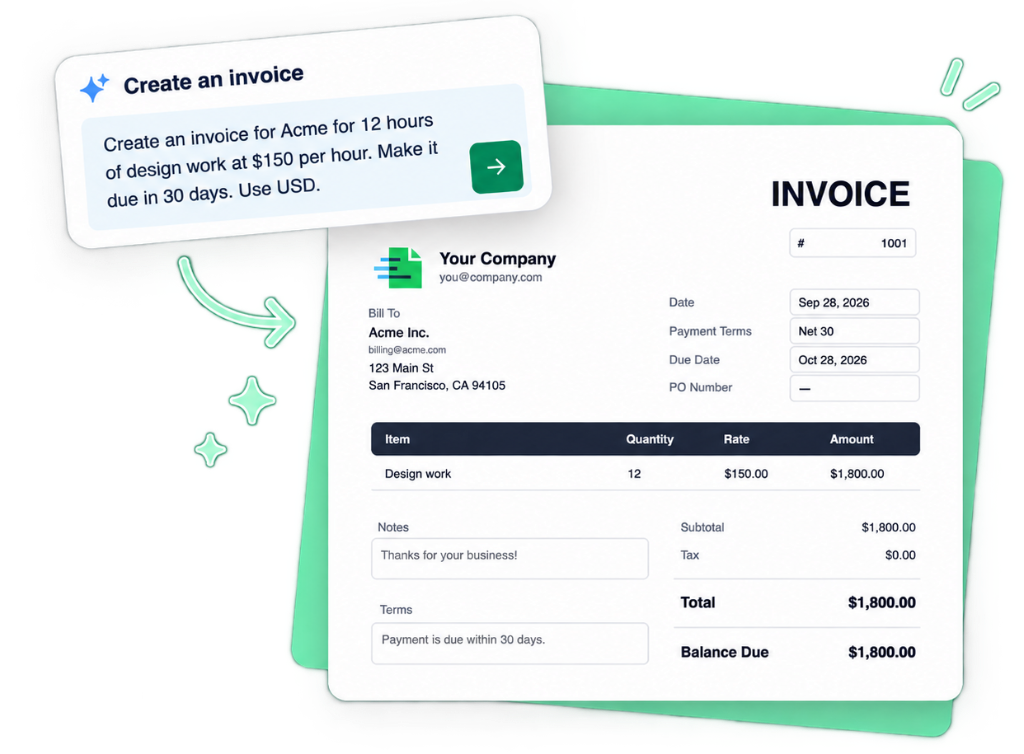
Create an invoice for Acme for 12 hours of design work at $150 per hour. Make it due in 30 days. Use USD.
Your AI turns those details into a prefilled Invoice Generator link. Open it, review the invoice, make any changes, and finish.
No account or connection required—works whether you're signed in or signed out.
How it works
From conversation to invoice
-
Tell your AI what to invoice
Describe the work, customer, pricing, and other details—or answer the questions your assistant asks. If you're already in a chat about the project, it can use that context too.
-
Open your prefilled invoice
Your AI creates a link to Invoice Generator using the information you provide. Open it and the invoice is already filled out.
-
Review and finish
Check the invoice, fill in anything that's missing, and make any changes you need. Then finish the invoice as you normally would in Invoice Generator.
Try it
Use the AI assistant you already use
Invoice Generator publishes public AI instructions that any assistant can read. Pick your assistant below to start a conversation with the instructions loaded.
Documents
More than invoices
Your AI assistant can prepare quotes, estimates, timesheets, receipts, credit notes, pro forma invoices, purchase orders, sales orders, and account statements—not just invoices. Ask for the document type that matches what you need.
- Invoices
- Quotes
- Estimates
- Timesheets
- Receipts
- Credit notes
- Pro forma invoices
- Purchase orders
- Account statements
Review first
AI fills it out. You stay in control.
Your AI prepares the document using the information you provide.
You open it in Invoice Generator before anything happens.
Review the customer, line items, prices, dates, taxes, terms, and other details. Add anything that's missing or change anything that's wrong.
Your AI should leave information it doesn't know blank rather than guessing.
Optional
Connect your AI to Invoice Generator
Want your AI assistant to create and save invoices directly to your account?
Connect Invoice Generator using MCP. Once connected, supported AI assistants can create documents in your account instead of sending you a prefilled link.
Prefilled link
Best for quickly creating an invoice from a conversation. No connection required.
Connected with MCP
Best for creating and saving documents directly to your account. One-time connection required.
Connect with MCP →
- Create an account or sign in.
- In your AI app, add this connection URL:
Approve access when prompted and choose which Invoice Generator account should receive documents. Then ask your assistant to create an invoice—it is saved in your account and you get a link to open it.
For create_* details and when assistants should connect versus use a prefilled link, see the
AI instructions.
MCP is an open standard for connecting AI assistants to applications. Developer documentation →
For builders
For AI assistants and developers
AI instructions
Invoice Generator publishes AI instructions specifically for AI assistants.
OpenAPI specification
The OpenAPI specification defines the supported document fields and data structures.
Invoice Generator API
Developers can also use the Invoice Generator API to generate documents programmatically.
FAQ
Frequently asked questions
- Do I need an Invoice Generator account?
- No. You can open a prefilled document without an account. If you're already signed in, it works there too.
- Does the AI create the final invoice?
- The AI fills out the document and gives you a link to open it in Invoice Generator. You review and edit it before finishing.
- Do I need to connect my account to use Invoice Generator with AI?
- No. Prefilled links still work without an account. Connecting with MCP is optional if you want documents saved to your Invoice Generator account.
- Does Invoice Generator have its own AI chatbot?
- No new chatbot is required. You can use an AI assistant you already use, such as ChatGPT, Claude, Gemini, or Perplexity.
- Can AI use information we've already discussed?
- Yes. If the information is available in your conversation, ask your AI assistant to use it when preparing the document.
- What if the AI doesn't know something?
- It should leave unknown information blank rather than inventing it. You can fill in anything missing after opening Invoice Generator.
- Can I create documents other than invoices?
- Yes. Invoice Generator supports invoices, receipts, credit notes, quotes, estimates, pro forma invoices, purchase orders, sales orders, account statements, and timesheets.
- What does connecting my AI do?
- Connecting lets AI apps such as ChatGPT, Claude, and Cursor create documents directly in your Invoice Generator account after you sign in and approve access. Invoice Generator supports MCP, an open standard for this kind of connection.
- What can a connected AI create?
- Invoices, receipts, credit notes, quotes, estimates, pro forma invoices, purchase orders, sales orders, account statements, timesheets, work orders, and packing slips.
- Is connecting my AI different from the API?
- Yes. Connecting with MCP is for AI assistants you already use. The Invoice Generator API uses API keys for custom software integrations.
Get started
Ready to invoice?
Pick an assistant, share your invoice details, and open a ready-to-review document in Invoice Generator.
Pick an AI assistant to start with the Invoice Generator instructions loaded.